Script Editor
Each CygNet screen has an associated Script Mode. In this mode, the graphical screen editor is not visible and the Script Editor is displayed in its place. To toggle script mode, do one of the following:
- Click the
 icon in the Layout toolbar.
 - Choose Show Script Editor from the View menu.
- Double-click an object on the screen in Edit mode.
- Press Ctrl+T in Edit mode.
Note: Script mode will not exit if the script contains a syntax error. If this is the case, the cursor will move to the line on which the error occurs.
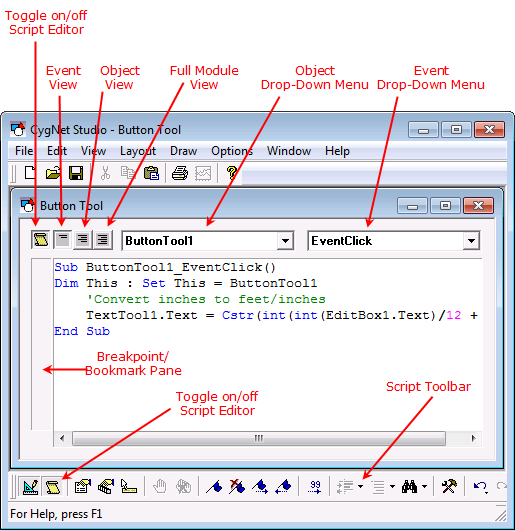
The layout of the Script Editor dialog box is described below.
|
Script Editor Layout |
| Controls | Description | ||||||||
|---|---|---|---|---|---|---|---|---|---|
|
Script View Buttons |
|
||||||||
|
Object Drop-Down Menu |
Displays a list of objects. |
||||||||
|
Event Drop-Down Menu |
Displays a list of events for the selected object in the object drop-down menu. |
||||||||
|
Breakpoint/Bookmark Pane |
Shows breakpoints and bookmarks next to lines of code. Left click next to a line of code to toggle a breakpoint or right-click to toggle a bookmark. |


The script editor provides auto completion ("IntelliSense"), so that typing a recognized object will cause the object’s properties and methods to appear in a list box. When one of the items is selected, its data type or parameter data types will be displayed as an aid.
The code window distinguishes user code, comments, and keywords with different colors. Comments are green, keywords are blue, literal values are pink, and all other text is black.
With the script editor, you can toggle the view to show the scripts for a specific event for a specific object (Event view), all of the events for a specific object (Object view), or all of the events for all of the screen’s objects (Full Module view).
To get back to Edit mode to work with objects, click one of the Script mode toggle buttons . Do not close the script editor using the "X" in the title bar. This will close the screen file (see Modes of Operation for a description of how modes relate to one another). When you close the script editor, a syntax check is run to make sure that the new code you entered is valid. If an error is encountered, the editor will not close. See Syntax Errors for more information.
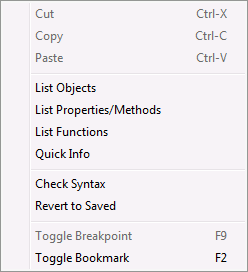
The script editor provides additional functionality through its context menu and the buttons in the Layout bar.
|
Script Editor Context Menu |
| Option | Description |
|---|---|
|
List Objects |
Lists all global objects and objects on the View. Select an object name to insert it at the cursor location. You can also press Ctrl+Spacebar to List Objects. |
|
List Properties/Methods |
Lists all built-in properties and methods available in the current context. Select a property or method name to insert it at the cursor location. |
|
List Functions |
Lists all built-in functions available in the current context. Select a function name to insert it at the cursor location. |
|
Quick Info |
If the cursor is at a recognized object or method, shows general information (such as object type and method parameters). |
|
Check Syntax |
Runs a syntax check on all script in the screen. Places the cursor at the first syntax error found, if any. This is done automatically when you switch out of Script mode. |
|
Revert to Saved |
Undoes all editing since the screen was last saved. THIS ACTION CANNOT BE UNDONE. |
|
Toggle Breakpoint |
Enables or disables a breakpoint on the current line. Script toolbar: You can also press F9 to toggle a breakpoint. |
|
Toggle Bookmark |
Enables or disables a bookmark on the current line. Script toolbar: You can also press F2 to toggle a breakpoint. |


Note: See Script Toolbar for a complete list of Script Editor shortcuts.
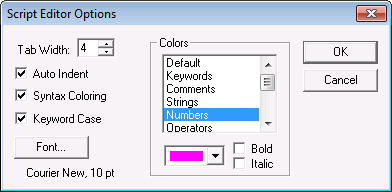
Other script-related features, such as indents and outdents, are available in the Script bar, which takes the place of the Layout toolbar in Script mode. One such button is the Options command  , which opens the Script Editor Options dialog box (shown below). Use this dialog box for setting display parameters of the script editor. See Script Toolbar for a full list of Script bar commands.
|
Script Editor Options |
To Open the Script Editor
In Edit mode, do one of the following:
- Click the Script Mode button in the Layout toolbar.
- Choose Show Script Editor from the View menu.
- Double-click an object on the screen.
- Press Ctrl+T on the keyboard.


